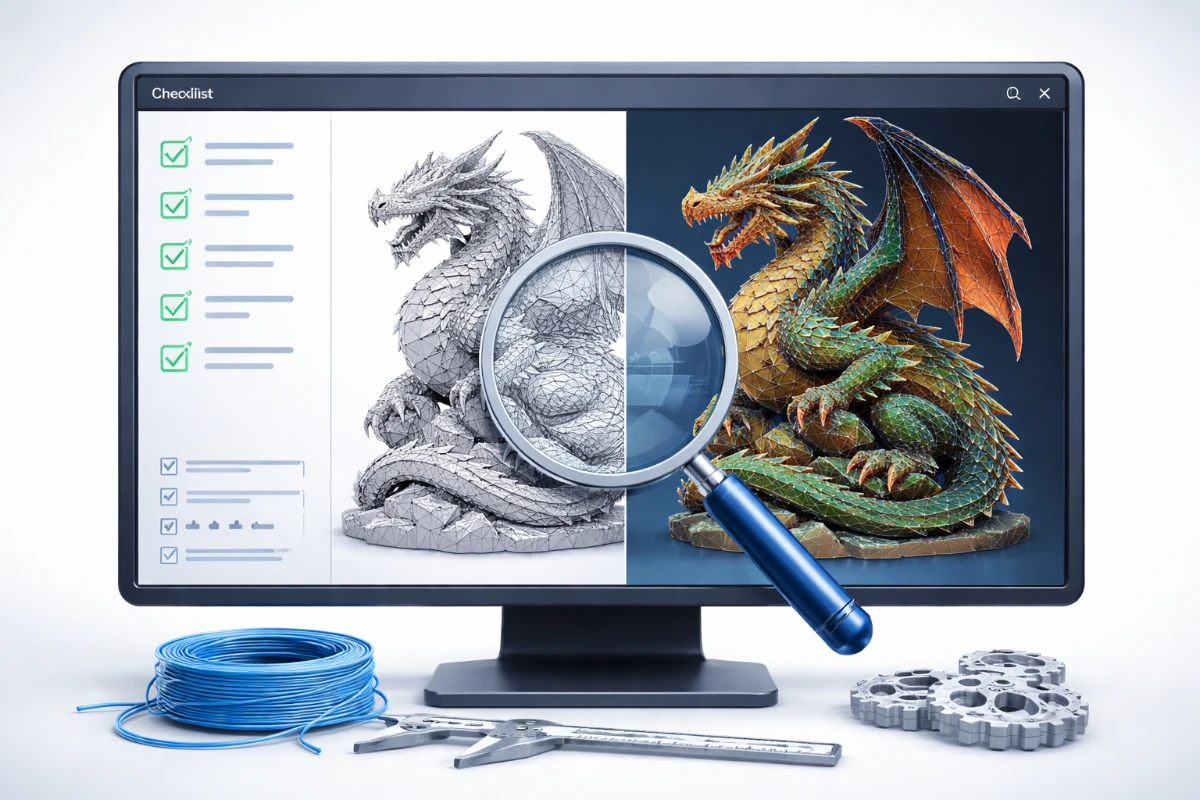
Not all 3D files are created equal. Choosing a good file for 3D printing can save you hours of failed prints, wasted material, and frustration. Whether you are downloading a file from an online repository or exporting from your own modeling software, there are several key criteria to evaluate before hitting print.
Why File Quality Matters in 3D Printing
A poorly prepared file can cause print failures ranging from minor surface defects to complete collapses mid-print. Common file issues include non-manifold geometry, inverted surface normals, and incorrect scale. Spending five minutes checking a file before printing can save hours of cleanup and wasted filament or resin.
Steps to Choose a Good 3D Printing File
- Check the format – Use STL or 3MF files for best compatibility with most slicers. OBJ files need conversion first. Avoid proprietary formats unless your slicer explicitly supports them.
- Check the structure (watertight mesh) – The model must be solid with no open holes or gaps in the surface. Import into Meshmixer or use Cura’s built-in repair function to verify. A “watertight” model has every edge shared by exactly two faces.
- Check the scale – Always verify the model dimensions in your slicer before printing. Some files are exported in centimeters instead of millimeters, making them appear 10x too small. Check the dimensions panel in Cura or PrusaSlicer.
- Check the resolution – Higher polygon count means more detail but larger file size and longer slicing time. For most prints, a medium-resolution STL (50,000–500,000 triangles) is sufficient. Ultra-high resolution is only needed for jewelry or dental applications.
- Check printer compatibility – Verify the file geometry works with your printer type. Large flat overhangs are problematic on FDM printers. Very thin walls (under 0.4mm) may not print at all.
How to Evaluate a File from Online Repositories
Check User Reviews and Makes
On platforms like Thingiverse, MyMiniFactory, or Printables, always look at the “Makes” section — photos of the model actually printed by other users. If nobody has printed it successfully, proceed with caution. Read the comments for any reported issues.
Check the Designer’s Reputation
Experienced designers with many published models tend to provide better-quality files. Look for designers with a track record of printable, well-tested models.
Check for Included Printing Notes
Good file uploads include recommended settings: layer height, infill, supports, orientation, and material. Files with detailed printing instructions tend to be of higher quality overall.
Material Compatibility
Also verify that the file is designed for the material you plan to use. Some models require flexible materials (TPU) for moving parts. Others have thin features that work only in resin but not FDM. Check the designer’s material recommendation before printing.
Tools to Repair and Validate STL Files
- Meshmixer – Free, excellent for analysis and automatic repair
- Microsoft 3D Builder – Opens and auto-repairs most STL errors
- Netfabb – Professional repair tool, free online version available
- Cura – Built-in X-Ray view to spot holes and issues
Browse our 3D Print Masterpieces for high-quality ready-to-print files that have been tested and optimized.